


.png)
Your Ultimate 10-Point ADA Compliant Website Checklist for 2025
- Dec 21, 2025
- 19 min read
In today's digital-first economy, your website often serves as the primary entrance to your business. But is that entrance truly open to everyone? An accessible website is not just about meeting legal requirements under the Americans with Disabilities Act (ADA); it's a core component of inclusive customer service and a savvy business strategy. With over one in four adults in the U.S. living with a disability, failing to prioritize web accessibility means you are actively excluding a significant portion of your potential audience and revenue.
This detailed ADA compliant website checklist is crafted specifically for business owners, marketers, and developers, particularly those serving the diverse communities of Southern California. Our service area is centered in Los Angeles, but we support clients from the beach communities of Malibu and Redondo Beach to the San Fernando Valley hubs of Sherman Oaks and Encino. We will provide a clear, actionable roadmap to creating a more inclusive online experience. For a comprehensive approach to creating an inclusive digital presence, exploring an ultimate website accessibility checklist can provide foundational insights.
Our guide breaks down 10 critical areas, offering practical steps to help you identify barriers, implement necessary fixes, and ensure your website welcomes all users, regardless of their abilities. Following these guidelines will not only help mitigate legal risks but also significantly enhance user experience for every visitor, boost your SEO performance, and solidify your brand’s reputation as a community-focused leader. This checklist moves beyond theory, giving you the tools to make immediate, impactful changes.
1. Keyboard Navigation and Focus Management
A foundational element of any ADA compliant website checklist is ensuring every function can be operated without a mouse. Keyboard navigation is essential for users with motor disabilities who cannot use a mouse, as well as for screen reader users who rely on keyboard commands to interact with web content. This principle, outlined in WCAG 2.1.1, mandates that all interactive elements-links, buttons, form fields, and menus-must be accessible and operable using only a keyboard.

This means a user should be able to navigate sequentially through a page using the key (and to go backward) and activate elements with the or keys. Proper focus management is equally crucial; a visible indicator, like a clear outline, must always show which element is currently selected. Without this, users navigating via keyboard have no way of knowing where they are on the page.
How to Implement Keyboard Accessibility
To achieve full keyboard compliance, your development process should prioritize a logical and predictable user experience. For businesses from Santa Monica to Pasadena, ensuring your site is easily navigable helps retain local customers who may have accessibility needs.
Logical Tab Order: Use semantic HTML elements like , , and . Browsers naturally create a logical tab order based on the source code. Avoid using CSS to visually reorder elements, as this can break the keyboard navigation flow.
Visible Focus Indicators: Never use in your CSS without providing a custom, high-contrast alternative. The default focus outline is a critical accessibility feature. A good practice is to design a branded focus style that is both visible and aesthetically pleasing.
"Skip to Main Content" Links: For pages with extensive navigation, like those common on sites for professional services in Beverly Hills or local shops in Glendale, a "skip link" is invaluable. This allows keyboard users to bypass repetitive header links and jump directly to the primary content.
Implementing robust keyboard navigation is not just a technical requirement; it's a commitment to inclusivity. It ensures that all users, regardless of ability, can fully engage with your website. If you are starting to learn about this topic, you can gain more insight into what is ADA compliance for websites. This principle forms the bedrock of a truly accessible digital presence for any organization.
2. Color Contrast and Visual Accessibility
A critical component of any ADA compliant website checklist is ensuring all text is easily readable for everyone, including users with visual impairments like low vision or color blindness. Sufficient color contrast between text and its background is not just a design choice; it's an accessibility mandate. This principle, detailed in WCAG 2.1 AA, requires a minimum contrast ratio of 4.5:1 for normal text and 3:1 for large text and graphical elements like icons.
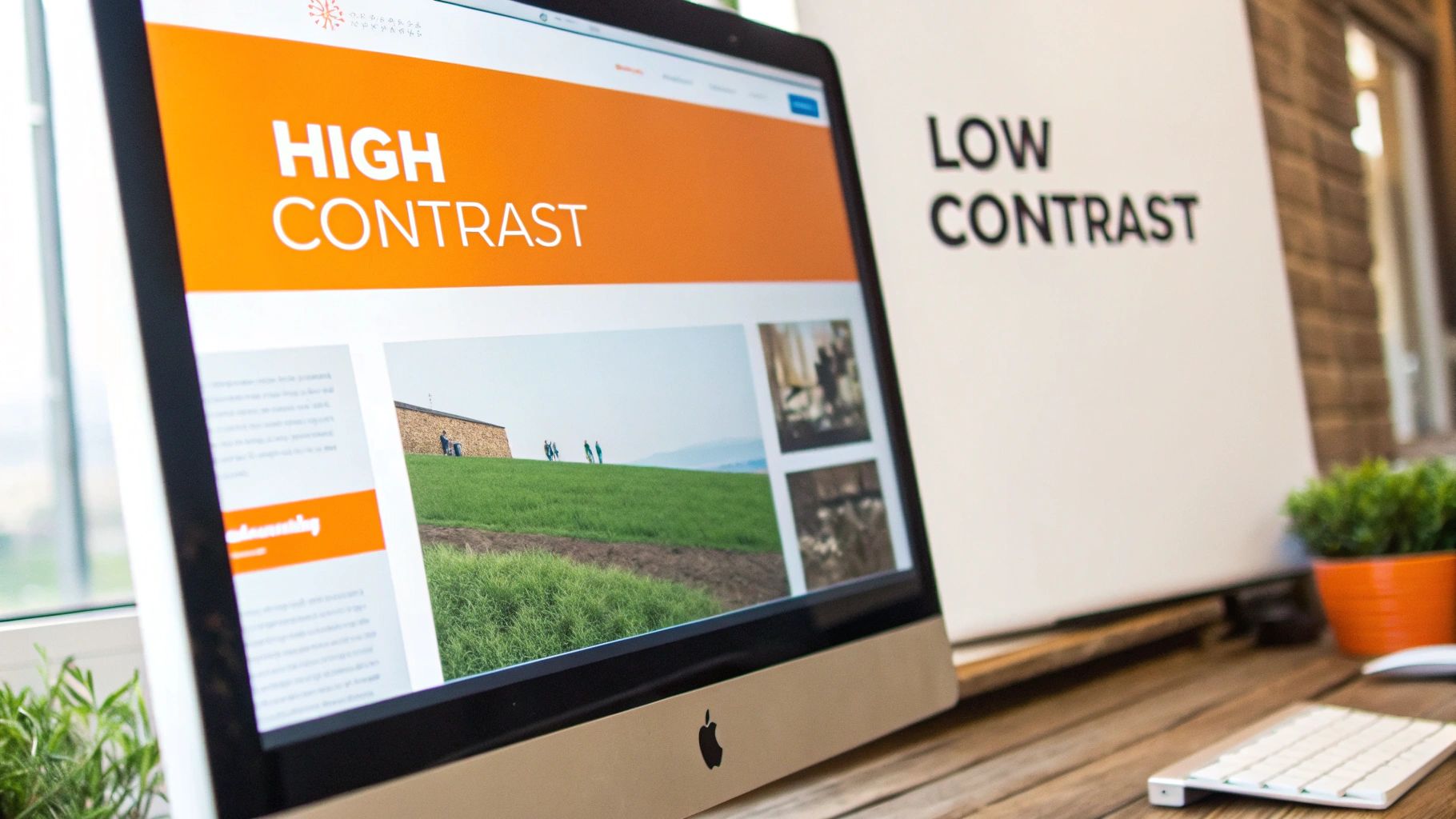
Adhering to these ratios ensures that content is legible, reducing eye strain for all users and making your site accessible to a broader audience. For businesses trying to connect with communities from the San Fernando Valley to the South Bay, poor contrast can make key information like phone numbers, addresses, or service details completely inaccessible, leading to lost customers.
How to Implement Proper Color Contrast
Achieving compliant color contrast requires a proactive approach during the design and development phases. It involves selecting an accessible color palette and rigorously testing it to ensure all visual information is clearly perceivable. This is especially vital for professional practices in areas like Burbank or Pasadena, where establishing trust begins with clear communication.
Utilize Contrast Checking Tools: Before finalizing your brand colors, use tools like the WebAIM Contrast Checker to verify your text and background color combinations. This simple step can prevent major accessibility issues down the line.
Don't Rely on Color Alone: Never use color as the only means of conveying information. For example, if you use red and green to indicate errors or success in a form, supplement this with icons or text labels. This ensures users with color blindness can understand the message.
Test Interactive Element States: Ensure that links, buttons, and form fields maintain sufficient contrast in all their states: default, hover, focus, and active. A button that becomes unreadable when a user hovers over it fails accessibility standards.
Strong color contrast is fundamental to creating an inclusive digital experience. It ensures that your message is clearly communicated to every visitor, regardless of their visual ability. Implementing these standards is a key step in building a website that truly serves your entire audience across Los Angeles and beyond.
3. Semantic HTML and Proper Markup
A crucial step in any ADA compliant website checklist is building with semantic HTML. This practice involves using HTML elements according to their intended meaning, not just their appearance. Semantic markup provides a clear, logical structure that assistive technologies like screen readers can easily interpret, making your content understandable for all users. WCAG 2.4.1 (Bypass Blocks) and 2.4.6 (Headings and Labels) underscore the importance of a well-organized document structure.
Instead of using generic and tags for everything, semantic HTML employs elements like , , , , and to define distinct regions of a page. This creates a virtual map that screen reader users can use to navigate efficiently. For example, a user can instantly jump to the main navigation () or the primary content () without having to listen through the entire page.
How to Implement Semantic HTML
Properly structured HTML forms the skeleton of an accessible website. For businesses from Downtown Los Angeles to the San Fernando Valley, a semantically correct site ensures that local customers using assistive technology have a positive and effective user experience.
Use Landmark Elements: Structure your page with landmark roles like , , , and . This allows users to bypass repetitive blocks of content and quickly find what they need.
Logical Heading Hierarchy: Always start with a single for the main page title. Follow with for major sections, for subsections, and so on. Never skip heading levels (e.g., jumping from an to an ) as this confuses screen readers.
Label All Form Fields: Every form input, such as a text field or checkbox, must have an associated element. This explicitly connects the visible text label to its control, which is essential for usability.
Use Lists and Tables Correctly: Use for unordered lists, for ordered lists, and for list items. Reserve elements for displaying tabular data, not for page layout, and use for table headers.
Building with semantic HTML from the start is more efficient than retrofitting accessibility later. It not only improves the user experience for people with disabilities but also benefits your site’s SEO, as search engines use this structure to better understand and rank your content.
4. Alternative Text (Alt Text) for Images
A crucial component of any ADA compliant website checklist is providing descriptive text alternatives for all visual content. Alternative text, or "alt text," is a concise written description of an image that is embedded in the HTML code. It is essential for users of screen readers, who rely on these descriptions to understand the content and context of images, graphics, and charts. This principle, outlined in WCAG 1.1.1, ensures that non-text content has a text alternative that serves an equivalent purpose.
Without alt text, visual information is completely inaccessible to users with visual impairments. The screen reader would simply announce "image" or read the filename, leaving the user without the information conveyed. Well-written alt text provides a meaningful experience by describing not just what an image is, but also why it's there.
How to Implement Effective Alt Text
Writing good alt text is an art that balances conciseness with descriptive detail. For businesses from the San Gabriel Valley to the South Bay, providing this context ensures all potential customers, including those with disabilities, can fully engage with your brand's visual storytelling.
Be Specific and Descriptive: Describe the image's content and function accurately. Avoid starting with phrases like "image of" or "picture of," as screen readers already identify the element as an image. For example, instead of "a person," write "a lawyer in a suit reviewing documents at a desk."
Consider the Context: The alt text should convey the information relevant to the surrounding content. If an image of a team in Downtown Los Angeles is on a "Careers" page, the alt text might be "Our diverse marketing team collaborating in our Los Angeles office."
Use Empty Alt Text for Decorative Images: If an image is purely for decoration and provides no informational value (like a background pattern or a stylistic border), use an empty alt attribute (). This tells screen readers to ignore the image, preventing unnecessary noise for the user.
Describe Function for Linked Images: When an image functions as a link, the alt text should describe the link's destination or action. For a company logo that links to the homepage, the alt text should be "Company Name - Home" rather than just "logo."
Implementing proper alt text is a fundamental step toward digital inclusivity. It ensures that the rich visual content on your website is accessible to everyone, reflecting a commitment to serving all members of the community. For a deeper understanding, resources from the W3C provide extensive guidance on creating effective text alternatives. This practice is vital for building an accessible digital presence for any organization.
5. Accessible Forms and Input Fields
A critical part of any ada compliant website checklist is ensuring web forms are usable by everyone. Forms are the primary way users provide information, from simple contact requests to complex e-commerce checkouts. Accessible forms are essential for users with visual impairments who rely on screen readers, as well as those with motor disabilities who navigate via keyboard. This principle, covered under various WCAG guidelines like 3.3.2 (Labels or Instructions), requires that all form controls are clearly labeled and easy to understand.

When a form is inaccessible, it creates a direct barrier to engagement and conversion. If a user cannot determine what information a field requires, identify errors, or submit the form, they will likely abandon the task. This means lost leads, missed sales, and a frustrating user experience that damages brand perception. Proper implementation ensures assistive technologies can correctly announce each field's purpose, instructions, and status.
How to Implement Accessible Forms
Making forms compliant involves semantic HTML and clear, supportive user feedback. For businesses serving communities from the San Fernando Valley to the South Bay, an accessible contact form can be the difference between gaining a new client and losing them to a competitor.
Use Tags Correctly: Every form input (, , ) must have a corresponding tag programmatically associated with it using the and attributes. Placeholder text is not a substitute for a visible, persistent label.
Group Related Fields: Use the element to group related controls, such as a set of radio buttons for a single question. The element provides a caption for the entire group, giving context to screen reader users.
Provide Clear Error Identification: When a user makes a mistake, the error must be identified in text. Clearly state what the error is and provide suggestions for fixing it. Use regions to announce errors dynamically so screen reader users are immediately aware of them.
Indicate Required Fields: Mark required fields clearly, not just with color. The standard practice is to use an asterisk () and include text at the beginning of the form explaining that an asterisk indicates a required field.
Building accessible forms ensures that all potential customers, whether in bustling Downtown Los Angeles or quieter neighborhoods like Tarzana, can successfully interact with your business online. It is a foundational step in creating an inclusive digital presence.
6. Captions and Transcripts for Multimedia
A key part of any modern ADA compliant website checklist is making multimedia content accessible to everyone. Providing captions for videos and transcripts for all audio content is essential for users who are deaf or hard of hearing, as well as for those who may be watching in a noisy environment or prefer to consume information by reading. This principle, covered under WCAG guidelines 1.2.2 (Captions) and 1.2.1 (Audio-only and Video-only Prerecorded), ensures that no user is excluded from your message.
Captions are synchronized text that displays spoken dialogue and other important sounds, while transcripts provide a complete text version of the audio content. Implementing these features not only serves accessibility needs but also improves user engagement and SEO, as search engines can crawl the text in transcripts. From a marketing agency in Hollywood to a dental practice in Torrance, making your video testimonials and service explanations accessible broadens your reach across Southern California.
How to Implement Accessible Multimedia
Achieving full compliance for your multimedia involves ensuring accuracy and usability. While auto-generated captions are a starting point, they often contain errors that can confuse users and misrepresent your content.
Ensure Caption Accuracy: Use professional captioning services or meticulously review auto-generated captions for correctness. Captions should include speaker identification and descriptions of non-speech audio cues like or .
Provide Comprehensive Transcripts: Offer a full text transcript on the same page as the audio or video content, or link directly to it. For those looking to generate transcripts, exploring free transcription software options can be a valuable step in this process.
Include Audio Descriptions: For videos where visual information is critical to understanding the content (and not conveyed through dialogue), provide audio descriptions. This is an additional narration track that describes key visual elements, as outlined in WCAG 1.2.5.
By making your multimedia accessible, you demonstrate a commitment to inclusivity that resonates with all audiences. It ensures every visitor, whether in bustling Downtown Los Angeles or the quiet neighborhoods of the San Gabriel Valley, can fully understand and engage with your brand's message. This practice is fundamental to creating a truly welcoming digital experience.
7. Responsive Design and Mobile Accessibility
A crucial component of any modern ADA compliant website checklist is ensuring a seamless experience across all devices. Responsive design allows your website's layout to adapt fluidly to different screen sizes, from a wide desktop monitor to a small smartphone. This is essential for accessibility, as users with low vision may use tablets in portrait mode or magnify their phone screens, while others rely solely on mobile devices for internet access. This principle aligns with WCAG 2.1 success criterion 1.4.10, which addresses content reflow without requiring horizontal scrolling.
Mobile accessibility goes beyond just resizing content; it involves considerations like touch target size, spacing, and readability on smaller screens. When a website is not optimized for mobile, users may struggle to click small links, read compressed text, or navigate complex menus. A responsive, mobile-first approach ensures that all users, regardless of their device, have equal access to your information and services.
How to Implement Mobile Accessibility
Building a responsive website from the ground up ensures that accessibility is integrated, not an afterthought. For businesses from the San Fernando Valley to the South Bay, a mobile-friendly site is key to capturing a local audience that is increasingly on the go.
Adopt a Mobile-First Strategy: Design your website for the smallest screen first, then progressively enhance the layout for larger screens. This forces you to prioritize essential content and ensures a solid foundation for all users.
Use Relative Units: Implement CSS with relative units like , , and percentages for font sizes and container widths. This allows content to scale gracefully with the user's viewport and text-zoom settings, a vital feature for users with low vision.
Ensure Sufficient Touch Target Size: Interactive elements like buttons and links should have a minimum size of 44x44 CSS pixels, as recommended by WCAG. This prevents users with motor impairments or those on bumpy transit in Downtown Los Angeles from making accidental clicks.
Test Zoom Functionality: Verify that users can zoom into your website up to 200% on mobile devices without breaking the layout or losing content. This is a fundamental requirement for accessibility and a better user experience for everyone.
By prioritizing responsive design, you ensure your website remains accessible and user-friendly for every visitor. This commitment not only helps with compliance but also expands your reach to the widest possible audience, reinforcing your brand's dedication to inclusivity.
8. ARIA (Accessible Rich Internet Applications) Implementation
When standard HTML elements are not enough to convey the purpose, state, or properties of complex user interface components, ARIA (Accessible Rich Internet Applications) provides the necessary semantics. This W3C specification allows you to make dynamic content and advanced UI controls, like live-updating regions or custom-built widgets, understandable to assistive technologies. It is a critical part of any modern ADA compliant website checklist for creating truly interactive experiences.
ARIA works by adding special attributes to HTML tags, giving screen readers information that isn't visually apparent. For example, tells a user that a collapsible menu is currently open. This doesn't change how the element looks or functions; it only adds a layer of meaning for assistive devices, ensuring that users with disabilities can interact with complex components as effectively as anyone else.
How to Implement ARIA Correctly
Proper ARIA implementation is about supplementing, not replacing, native HTML accessibility. For businesses from Long Beach to the San Fernando Valley, using ARIA correctly can significantly enhance the user experience for customers interacting with sophisticated online tools or e-commerce features.
Rule #1: Use Native HTML First. Before reaching for ARIA, always use a semantic HTML element if one exists for the job. For example, use the element instead of a with .
Don't Change Native Semantics. Never use an ARIA role to change the inherent meaning of a standard HTML element. For instance, do not apply to an heading.
Add Labels and Descriptions. Use to provide an accessible name when no visible text label exists. For more detailed instructions or context, use to link an element to a separate descriptive text block.
Announce Dynamic Changes. Use attributes like to inform screen reader users about content that updates without a page reload, such as form validation errors or live chat messages.
Effectively using ARIA is a powerful way to bridge accessibility gaps in modern web applications. By following best practices, you ensure your website's advanced features are open to all. As you build these complex interfaces, it is also useful to read about a practical guide to mobile-first design to ensure a cohesive user experience across all devices. This commitment to detail is what defines a truly inclusive digital presence.
9. Page Structure and Heading Hierarchy
A well-organized page structure is the backbone of an accessible website, serving as a clear outline for all users. Proper heading hierarchy is essential for users of assistive technologies, especially screen readers, as it allows them to understand the organization of your content and navigate to specific sections efficiently. This principle, tied to WCAG 2.4.6 (Headings and Labels) and 2.4.10 (Section Headings), ensures content is presented in a logical, predictable manner.
Imagine trying to read a book with no chapter titles or section breaks. That’s what a website without a proper heading structure feels like to a screen reader user. By using headings (, , , etc.) correctly, you create a semantic outline that can be used to skip repetitive content and find information quickly, making your site far more usable.
How to Implement Proper Heading Hierarchy
Achieving a logical heading structure requires planning your content before implementation. This ensures the hierarchy reflects the content's importance and relationships, a crucial step for businesses from Sherman Oaks to Long Beach looking to serve a diverse local audience.
Use Only One Per Page: The is the main title of the page and should be unique. It tells users and search engines what the page is about.
Follow a Logical Order: Heading levels should descend sequentially without skipping. An must be followed by another or an , but never an . This rule in any ada compliant website checklist is non-negotiable for true accessibility.
Don't Use Headings for Style: Avoid using heading tags simply to make text bigger or bolder. Use CSS for styling, and reserve heading tags for structuring your content. For example, if you need bold text under an , use a tag or a CSS class instead of skipping to an .
Verify Your Structure: Use browser extensions or online tools to check your page’s heading outline. This allows you to see the structure as a screen reader would, revealing any gaps or errors in your hierarchy.
By implementing a clear and logical heading structure, you not only improve accessibility but also boost your site’s SEO. This creates a better experience for all users, ensuring everyone can understand and navigate the valuable information you provide.
10. Testing with Accessibility Tools and Real Users
A critical step in any ADA compliant website checklist is a robust testing strategy that combines automated tools with human evaluation. While automated scans can quickly identify common coding errors, they cannot replicate the nuances of human interaction. True compliance requires a hybrid approach: using technology to catch widespread issues and involving real users with disabilities to uncover practical barriers that tools might miss. This comprehensive validation ensures your website is not just technically compliant but genuinely usable for everyone.
This dual-pronged method addresses WCAG principles by confirming that content is perceivable, operable, understandable, and robust from multiple perspectives. Automated tools like Axe DevTools or WAVE can flag issues like missing alt text or contrast errors, but only a screen reader user can confirm if the navigation flow is logical. Similarly, only a keyboard-only user can verify if focus management is effective across the entire site.
How to Implement a Comprehensive Testing Strategy
To achieve and maintain accessibility, integrate testing throughout your development lifecycle rather than saving it for the end. For businesses serving communities from Long Beach to Sherman Oaks, this continuous process helps build a loyal customer base by providing a consistently positive and accessible online experience.
Combine Automated and Manual Scans: Use multiple automated tools (Lighthouse, Axe, WAVE) to get broad coverage, as each may catch different issues. Follow up with manual checks, especially for keyboard navigation (, , ) and screen reader compatibility (NVDA, JAWS, VoiceOver).
Involve Real Users with Disabilities: This is the gold standard for accessibility testing. Partner with individuals or organizations like WebAIM or the UK Government's Digital Accessibility Centre to get authentic feedback on how your website functions with various assistive technologies.
Integrate Testing into Your Workflow: Add accessibility checks to your QA process and, if possible, your CI/CD pipeline. This prevents new features from introducing accessibility regressions. Document all findings, track remediation efforts, and retest after every significant update.
By embracing a thorough testing methodology, you move beyond a simple checklist and commit to creating a digital presence that is truly inclusive. This proactive approach not only mitigates legal risks but also enhances usability for all visitors. For a deeper dive into the specific standards you will be testing against, you can learn more about understanding WCAG compliance levels. This ensures your testing is aligned with universally recognized benchmarks.
10-Point ADA Website Accessibility Comparison
Item | Implementation complexity 🔄 | Resource requirements ⚡ | Expected outcomes 📊 | Ideal use cases 💡 | Key advantages ⭐ |
|---|---|---|---|---|---|
Keyboard Navigation and Focus Management | 🔄 Medium — tab order, focus styles, keyboard handlers | ⚡ Medium — dev time, keyboard & user testing | 📊 Restores full keyboard access; supports WCAG A compliance | 💡 Interactive sites, web apps, navigation-heavy pages | ⭐ Benefits mobility-impaired users; improves usability & SEO |
Color Contrast and Visual Accessibility | 🔄 Low — design adjustments and testing | ⚡ Low — design time, contrast tools | 📊 Better readability and WCAG AA compliance | 💡 Content-heavy sites, public information, branding | ⭐ Improves readability, reduces eye strain, aids aging users |
Semantic HTML and Proper Markup | 🔄 Low — correct element use and headings | ⚡ Low — developer discipline and review | 📊 Enhanced screen reader interpretation and SEO | 💡 Articles, documentation, long-form content | ⭐ Natural structure, easier maintenance, fewer ARIA needs |
Alternative Text (Alt Text) for Images | 🔄 Low — writing concise descriptions | ⚡ Medium — content audit and ongoing authoring | 📊 Enables understanding when images unavailable; SEO gains | 💡 E‑commerce, editorial sites, image-heavy galleries | ⭐ Improves discoverability and screen reader comprehension |
Accessible Forms and Input Fields | 🔄 Medium — labels, error handling, grouping | ⚡ Medium — UX design, validation, testing | 📊 Higher form completion rates; fewer user errors | 💡 Registration, checkout, surveys, government forms | ⭐ Better conversion, clearer user guidance, easier testing |
Captions and Transcripts for Multimedia | 🔄 High — captioning, audio descriptions, sync | ⚡ High — captioning/transcription services and management | 📊 Reaches deaf/hard-of-hearing audiences; SEO boost | 💡 Video platforms, courses, podcasts, marketing media | ⭐ Makes multimedia searchable and usable without audio |
Responsive Design and Mobile Accessibility | 🔄 Medium‑High — fluid layouts, touch target sizing | ⚡ Medium — device testing, performance optimization | 📊 Consistent accessibility across devices; mobile SEO gains | 💡 Any public-facing site with mobile traffic | ⭐ Broad reach, improved UX, single maintainable codebase |
ARIA (Accessible Rich Internet Applications) Implementation | 🔄 High — careful ARIA patterns and testing | ⚡ Medium — developer expertise and cross-reader testing | 📊 Enables accessible custom widgets; dynamic content support | 💡 Complex UIs, SPAs, custom components needing semantics | ⭐ Makes non-semantic controls accessible when used correctly |
Page Structure and Heading Hierarchy | 🔄 Low — plan and enforce heading order | ⚡ Low — editorial discipline and tooling | 📊 Clear outline for screen readers and improved navigation | 💡 Articles, documentation, multi-section pages | ⭐ Faster navigation for assistive tech; SEO and clarity gains |
Testing with Accessibility Tools and Real Users | 🔄 Medium‑High — combine automated/manual/user testing | ⚡ High — tools, recruiting users, expert analysis | 📊 Comprehensive issue detection and prioritized remediation | 💡 Projects targeting WCAG compliance and usability validation | ⭐ Finds issues tools miss; prevents regressions; data-driven fixes |
From Checklist to Commitment: Your Next Steps in Web Accessibility
Moving through a comprehensive ADA compliant website checklist is a significant achievement. You have taken a critical step toward creating a more inclusive and effective digital presence. This journey, however, doesn't end with the final checked box. True accessibility is not a one-time fix or a static project; it is an ongoing commitment woven into the very fabric of your business operations. It’s a mindset that transitions from a technical task to a core value, ensuring your website remains open and usable for everyone, regardless of ability.
This commitment transforms your digital storefront from a potential barrier into a welcoming gateway. For small businesses, professional practices, and e-commerce retailers, this shift is more than just a legal safeguard. It is a powerful business strategy that expands your market reach, enhances your brand reputation, and demonstrates a genuine dedication to customer experience. By embracing these principles, you are future-proofing your website and aligning your brand with the values of inclusivity and equality.
Key Takeaways from Your Accessibility Audit
As you reflect on the checklist, several core themes should stand out as foundational pillars of your accessibility strategy. These are not just isolated tasks but interconnected concepts that work together to create a seamless user experience.
Functionality is Paramount: Items like keyboard navigation, accessible forms, and responsive design are non-negotiable. If a user cannot navigate your site, submit a form, or view your content on their device, your message and services are effectively lost to them.
Clarity is King: Semantic HTML, a logical heading hierarchy, and sufficient color contrast provide the essential structure and clarity that all users, especially those using screen readers, rely on to understand your content. This is the digital equivalent of clear signage and organized aisles in a physical store.
Content Must Be Perceivable: Every piece of content needs a perceivable alternative. This is the principle behind providing alt text for images and offering captions and transcripts for multimedia. Without these, entire segments of your audience are excluded from your messaging.
Mastering these concepts means prioritizing user experience for all users. It means building empathy into your design and development process, anticipating the diverse needs of your audience before they encounter a roadblock.
Turning the Checklist into Actionable, Ongoing Practice
Completing this checklist is just the beginning. The next crucial step is to integrate these principles into your daily workflow to ensure compliance is maintained and continuously improved. This proactive approach prevents accessibility debt from accumulating and keeps your site welcoming to every visitor.
Los Angeles is at the center of our service area, and we proudly support clients across a wide network of surrounding cities and neighborhoods throughout Southern California. Our reach includes every corner of L.A.—from Downtown Los Angeles, Hollywood, West Hollywood, Beverly Hills, and Santa Monica to the beach communities of Malibu, Venice, Marina del Rey, Hermosa Beach, Manhattan Beach, and Redondo Beach. We also extend service through the San Fernando Valley, including Sherman Oaks, Studio City, Encino, Van Nuys, North Hollywood, Burbank, Glendale, Pasadena, Woodland Hills, Chatsworth, Canoga Park, Reseda, Northridge, and Tarzana. In the San Gabriel Valley, we work with clients in Alhambra, Monterey Park, San Gabriel, Temple City, Rosemead, Arcadia, El Monte, South El Monte, West Covina, Covina, Baldwin Park, Azusa, Glendora, Duarte, and Monrovia. Farther southeast, we serve Whittier, Pico Rivera, Downey, Norwalk, La Mirada, La Habra, and Cerritos. We also support the South Bay—including Torrance, Carson, Gardena, Hawthorne, Inglewood, and Long Beach—as well as the Gateway Cities and communities throughout the I-10, I-5, 101, and 405 corridors. Whether you’re in a major metro area or a smaller surrounding neighborhood, our team delivers reliable, high-quality service anywhere in or around Los Angeles.
Ready to ensure your website is truly welcoming to all users? DLL Studios, a creative digital agency based in Glendora, specializes in building beautiful, high-performing, and fully ADA-compliant websites for businesses throughout the Los Angeles area. Let our team audit your site, remediate issues, and help you turn this checklist into a lasting competitive advantage.

