


.png)
Website: website not showing up on google? Here's how to fix it
- Jan 9
- 16 min read
That gut-wrenching moment when you search for your business and see... nothing. It’s a feeling I know well, and it’s terrifying. For a brand-new site, the reason is often simple: Google just hasn't found and indexed it yet. But for an existing site that suddenly vanishes, it could be anything from a rogue tag to a manual penalty or even content that just doesn't cut it anymore.
Your First Steps in Diagnosing an Invisible Website
Before you start pulling your hair out, take a deep breath. Panicking won't get your site indexed. The very first thing we need to do is figure out what's really going on. Is your site completely invisible to Google, or is it just ranking so poorly for your target keywords that it might as well be? These are two wildly different problems, each with its own roadmap to a solution.
Forget about diving into a complex technical audit just yet. First, we need to get our facts straight. The single most important tool for this job is Google Search Console. It's a free service that acts as a direct line of communication between you and Google, and it’s the only place to get the real story on how the search engine sees your site.
Confirming Google Knows You Exist
The absolute first move is to make sure your site is set up and verified in Google Search Console. If it’s not, you’re flying completely blind. Google has no reliable way to tell you about crawl errors, security issues, or indexing problems that are holding you back. Verification is a quick process that just proves you own the site.
Once you're in, you unlock a treasure trove of data. The immediate goal is to see if Google has even crawled your site. For a completely new website, it can take anywhere from a few days to a few weeks for Google’s bots to discover and index your pages.
A huge misconception I see all the time is that just hitting "publish" on a website makes it instantly show up on Google. The reality is, you have to ensure your site is discoverable, crawlable, and valuable enough for Google to even bother adding it to its massive index.
This initial diagnostic phase is all about fact-finding. Are any pages indexed at all? Are there crawl errors blocking Googlebot? Answering these questions inside Search Console will lay the foundation for everything we do next.
This decision tree helps visualize that first step: checking if you're indexed at all. The answer determines whether you have an indexing problem or a ranking problem.
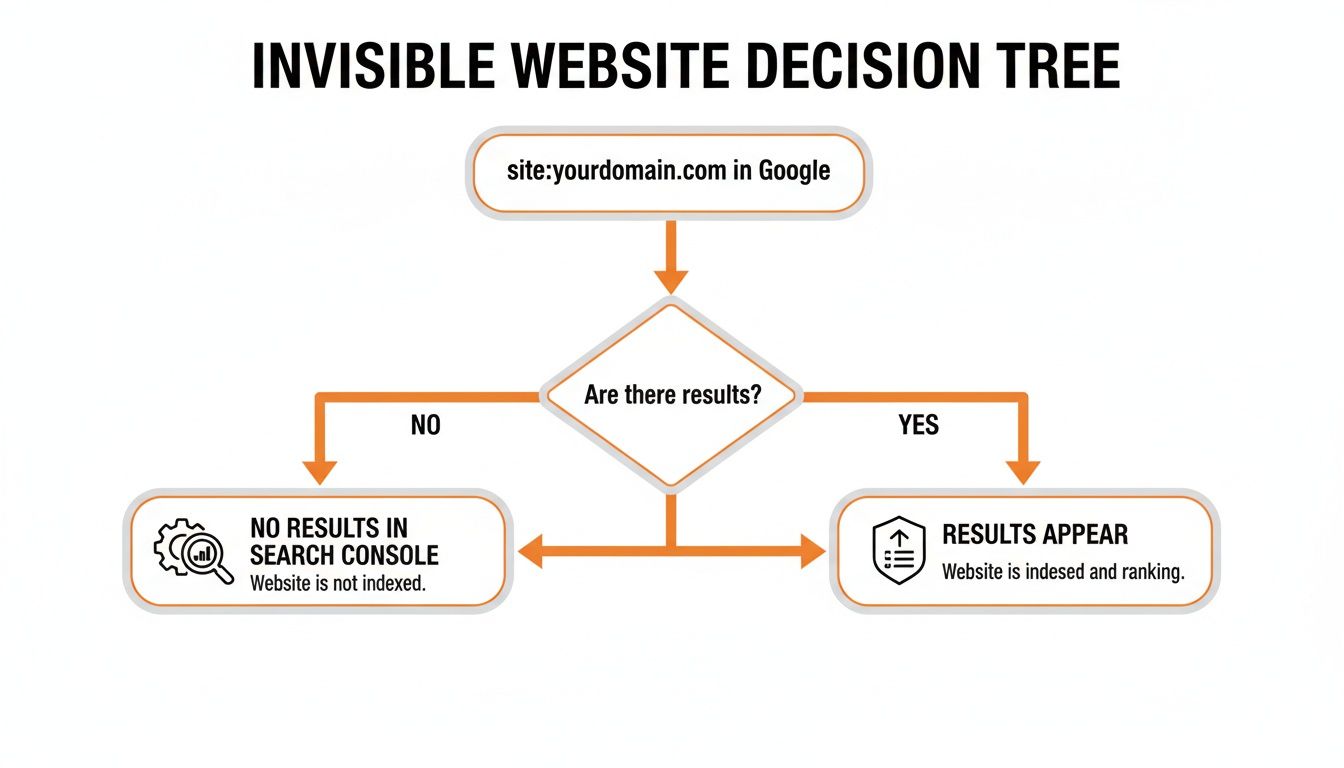
As the flowchart shows, if a search turns up empty, your immediate next step is to dig into the indexing reports inside Google Search Console.
Symptom vs. Cause: A Quick Diagnostic
To help you get started, it's incredibly useful to match what you're seeing (the symptom) with its most likely cause. This helps you focus your energy where it will actually make a difference instead of chasing ghosts.
For example, a client I worked with in a competitive market like Los Angeles found their site was technically indexed, but they were nowhere to be found for searches like "web design in Santa Monica." That wasn't an indexing problem; it was a ranking and local SEO challenge. On the other hand, a new e-commerce store in the San Fernando Valley that didn't even show up for its own brand name had a classic indexing issue.
This table should help you narrow things down.
Common Reasons Your Website Isn't on Google
Use this diagnostic table to match common symptoms with their potential underlying causes and where to look first.
Symptom You Are Experiencing | Potential Cause | First Place to Check |
|---|---|---|
No pages appear for a search. | Fundamental indexing block or the site is brand new. | Google Search Console (Indexing reports) |
Only the homepage is indexed, but no other pages. | Crawling issues, poor internal linking, or tags. | file and URL Inspection Tool |
The site used to appear, but now it's gone completely. | Manual penalty, sitewide error, or server issues. | Google Search Console (Manual Actions report) |
Specific pages are missing, but others are indexed fine. | tag, canonical issues, or low-quality content. | URL Inspection Tool for the specific page URL |
The site is indexed, but not ranking for any relevant keywords. | SEO and content quality issues (not an indexing problem). | Performance report and content audit |
The wrong version of the site is indexed (e.g., HTTP vs. HTTPS). | Improper redirects or canonical tag setup. | URL Inspection Tool and server redirect checks |
Matching your situation to one of these scenarios is the fastest way to get on the right track and start solving the real problem.
Auditing Your Technical SEO for Indexing Roadblocks
Alright, with Google Search Console open, it's time to get your hands dirty and dig into the technical side of your site. This is usually where the most common—and most frustrating—indexing problems are hiding. Think of yourself as a detective for a moment; you're on the hunt for clues that explain why Google's crawlers are getting lost, confused, or turned away at the door.
More often than not, the culprit is something maddeningly simple: a misconfigured file or a single misplaced line of code. These tiny technical slip-ups can make your entire website invisible, no matter how fantastic your content is. Let's start by checking the files that act as the gatekeepers for search engines.
Check Your Robots.txt File
Your robots.txt file is a simple text file that lives in the main directory of your site. Its job is to give instructions to web crawlers like Googlebot. It's a powerful tool, but it's also a frequent source of accidental self-sabotage.
A single line, , can tell Google to completely ignore your website. This is a classic "oops" moment, often left behind by developers after a site launch and simply forgotten.
You can easily check your own file by typing into your browser. Scan it for any rules that might be blocking important pages or even your whole site.
Analyze Your XML Sitemap
Next on the list is your XML sitemap. This file is basically a roadmap of your website, showing Google all the important URLs you want it to find and index. A clean, current sitemap helps Google discover your content much faster, especially when you publish something new.
Most modern CMS platforms will generate a sitemap for you automatically. You should submit its URL to Google Search Console and then keep an eye on the "Sitemaps" report for any errors. Common issues I see all the time include:
Outdated URLs: Pages that were deleted ages ago are still hanging around in the sitemap.
Errors: The sitemap itself has broken links or formatting mistakes.
Non-indexable URLs: The map includes pages that are also blocked by robots.txt or have a noindex tag, sending Google mixed signals.
A healthy sitemap tells Google you’re actively managing your site’s structure and care about being indexed properly. An error-filled one, on the other hand, just wastes Google's crawl budget and gums up the works.
For a deeper look into these technical checks, our guide on conducting a comprehensive SEO audit offers a more detailed checklist to uncover any hidden issues.
Hunt for Rogue Noindex Tags
A 'noindex' tag is a small piece of code in the HTML section of a webpage. Its command is absolute: it tells search engines, "Do not add this page to your index." While it's great for private areas like login pages or internal thank-you pages, a rogue noindex tag on an important page will make it vanish from search results completely.
This is one of the top reasons I find when a client says a specific page or blog post isn't showing up. The URL Inspection Tool in Search Console is your best friend here—it will tell you flat out if the page is marked as 'noindex'.
Understand Canonical Tags and Duplicate Content
Canonical tags () are another critical piece of the indexing puzzle. They tell search engines which version of a URL is the "master" copy when you have multiple pages with very similar or identical content. This is your primary defense against duplicate content issues, which can split your ranking signals and confuse Google.
For example, an e-commerce site might have the same product page accessible via several URLs with different tracking codes. A canonical tag points Google back to the main product page, consolidating all its ranking power in one place. If your canonicals are misconfigured, you might find Google indexing the wrong page or ignoring a key one entirely.
When you're running your audit, don't forget about the small stuff. For instance, the importance of alt text for images can't be overstated, as it helps search engines understand your visual content and improves accessibility. This kind of thorough technical check is your best defense against the common gremlins that keep good websites from getting the visibility they deserve.
Evaluating Your Content and On-Page Experience
Okay, so you’ve sorted out the technical roadblocks. Now it’s time to shift gears and look at what your visitors—and just as importantly, Google—actually see and experience on your site.
It's a common mistake to think a technically perfect website will automatically rank. The truth is, a site can be flawless under the hood but remain invisible if the content is weak, unhelpful, or delivers a clunky user experience. Google’s entire job is to give people the best possible answers. If your content doesn't clear that bar, you’ll be left in the dust.
Think of it this way: technical SEO gets your website invited to the party. But great content and a killer on-page experience? That’s what makes you the center of attention. Without them, you’re just a wallflower.
Is Your Content Helpful and Unique?
Google is obsessed with satisfying the user. If your content is thin, copied from somewhere else, or just plain doesn't answer the searcher's question, it’s going to struggle. So many sites get this wrong—they get so wrapped up in keywords that they forget to create something genuinely valuable for a human being.
Be honest and ask yourself these tough questions about your content:
Is it thin? Does the page have enough substance? A product page with just a picture and a price isn't nearly as helpful as one with a detailed description, specs, and real customer reviews.
Is it duplicative? Did you copy and paste content across multiple pages on your site? Or even worse, from another website? Every single page needs to offer unique value.
Does it satisfy search intent? If someone searches for "how to fix a leaky faucet," they want a step-by-step guide, not a sales pitch for a plumber. Make sure your content format actually matches what a user is looking for.
One of the biggest reasons a "website not showing up on Google" is simply the mind-boggling competition. Google’s index has hundreds of billions of pages, and it handles over 5 trillion searches every year. In 2025, Google’s move to show just 10 results per page made anything beyond page one practically invisible, especially since over 60% of searches happen on mobile.
This means a local business can be indexed perfectly but still get zero traffic if it’s stuck on page two. Here at DLL Studios, this is why we insist that a launch checklist must be paired with an aggressive content and local SEO strategy. Simply being in Google's index is not enough to be seen.
Prioritizing Website Performance and User Experience
Beyond the words on the page, Google cares immensely about the actual experience of using your site. A slow, clunky, or insecure website sends all the wrong signals. Things like Core Web Vitals aren't just buzzwords anymore; they are critical ranking factors.
A user who clicks your link and immediately hits the back button because the page took forever to load is one of the clearest signals to Google that your page isn't a good result. This "pogo-sticking" behavior will tank your rankings over time.
A great place to start is testing your site with a free tool like Google PageSpeed Insights. It gives you a straightforward score for both mobile and desktop and tells you exactly what to fix.
The usual suspects behind a poor experience include:
Slow Load Times: Huge, uncompressed images are the number one offender here.
Lack of Mobile-Friendliness: Your site has to be a breeze to use on a small screen. No pinching and zooming.
No HTTPS: An SSL certificate is non-negotiable. It’s a basic standard for security and trust, and Google Chrome will actively warn users away from non-secure sites.
Fixing these user experience issues doesn’t just help your SEO—it boosts conversions. A happy visitor is far more likely to become a customer. For a deeper look at how to align your content with what people are actually searching for, check out our guide on building an effective keyword optimization strategy.
Check for Platform-Specific Indexing Roadblocks
Sometimes, the culprit isn't some deep, dark technical SEO mystery. It’s a simple switch buried in your website's backend. Content management systems (CMS) have their own quirks, and knowing where to look can save you a mountain of headaches. A single forgotten checkbox can be the difference between getting found and being invisible.
It often happens by accident. During development or a redesign, it's common practice to block search engines from crawling an unfinished site. The real problem starts when someone forgets to flip that switch back after launch.
Let's dig into the most common platform-specific settings that trip people up in WordPress, Wix, and Webflow.
The Infamous WordPress Visibility Setting
WordPress powers a staggering 43% of the internet, and it comes with one of the most notorious "kill switches" for SEO. It’s a single checkbox that tells every search engine to politely ignore your entire website by adding a tag everywhere.
The setting is tucked away, so it's easy to miss if you're not looking for it. Head to your WordPress dashboard and navigate to Settings > Reading.
You'll see a "Search Engine Visibility" option that looks just like this:
If that box next to "Discourage search engines from indexing this site" is checked, you've found a huge piece of the puzzle. Uncheck it, hit "Save Changes," and breathe a sigh of relief. You’ve just removed the sitewide block, giving Google the green light to start crawling and indexing your pages again.
Digging into Wix and Webflow SEO Settings
Wix and Webflow handle things a bit differently. Instead of one big on/off switch like WordPress, they provide dedicated SEO dashboards. This gives you finer control but also means there are a few more spots to check.
If you’re on Wix, your first stop should be the platform's SEO checklist. The most important thing here is to confirm that indexing is actually turned on.
In your site's dashboard, go to the Marketing & SEO section.
Find the SEO settings and look for a toggle labeled something like "Let search engines index your site."
Make sure this is switched ON. If it's off, Wix is actively blocking search engines from seeing your content.
For Webflow users, the controls live in a similar spot within your project settings.
Go to your project’s Settings and click the SEO tab.
Under the "Indexing" section, check the "Disable Webflow Subdomain Indexing" toggle. Make sure it's set correctly for your setup (especially if you're using a custom domain).
Even more important is to check individual page settings. In the Designer, open the settings for each page and look for any custom code where a tag might have been added manually.
We see this all the time. A client of ours in Pasadena had a technically perfect site, but their Webflow settings were misconfigured from a past redesign. They were essentially hidden from local customers. It was a five-minute fix that unlocked months of pent-up SEO potential.
Getting these platform settings right is a non-negotiable first step. If you're using Wix, for example, doing a deep dive into its specific SEO features can make a world of difference. To get everything dialed in from the start, check out a practical guide to mastering Wix Studio SEO and make sure you’re set up for maximum visibility.
Creating Your Action Plan to Get Visible on Google
Alright, you've done the detective work and diagnosed the technical glitches, content gaps, or platform settings that have been keeping your site invisible. Finding the problems is half the battle, but now it's time to build a smart plan of attack. You need a prioritized roadmap to fix what's broken and, just as importantly, tell Google you're officially open for business.
This is where you shift from analysis to action. The first, and most immediate, thing you can do is talk directly to Google. You don't have to just sit back and hope its crawlers eventually find your updated pages.
Manually Requesting Indexing in Search Console
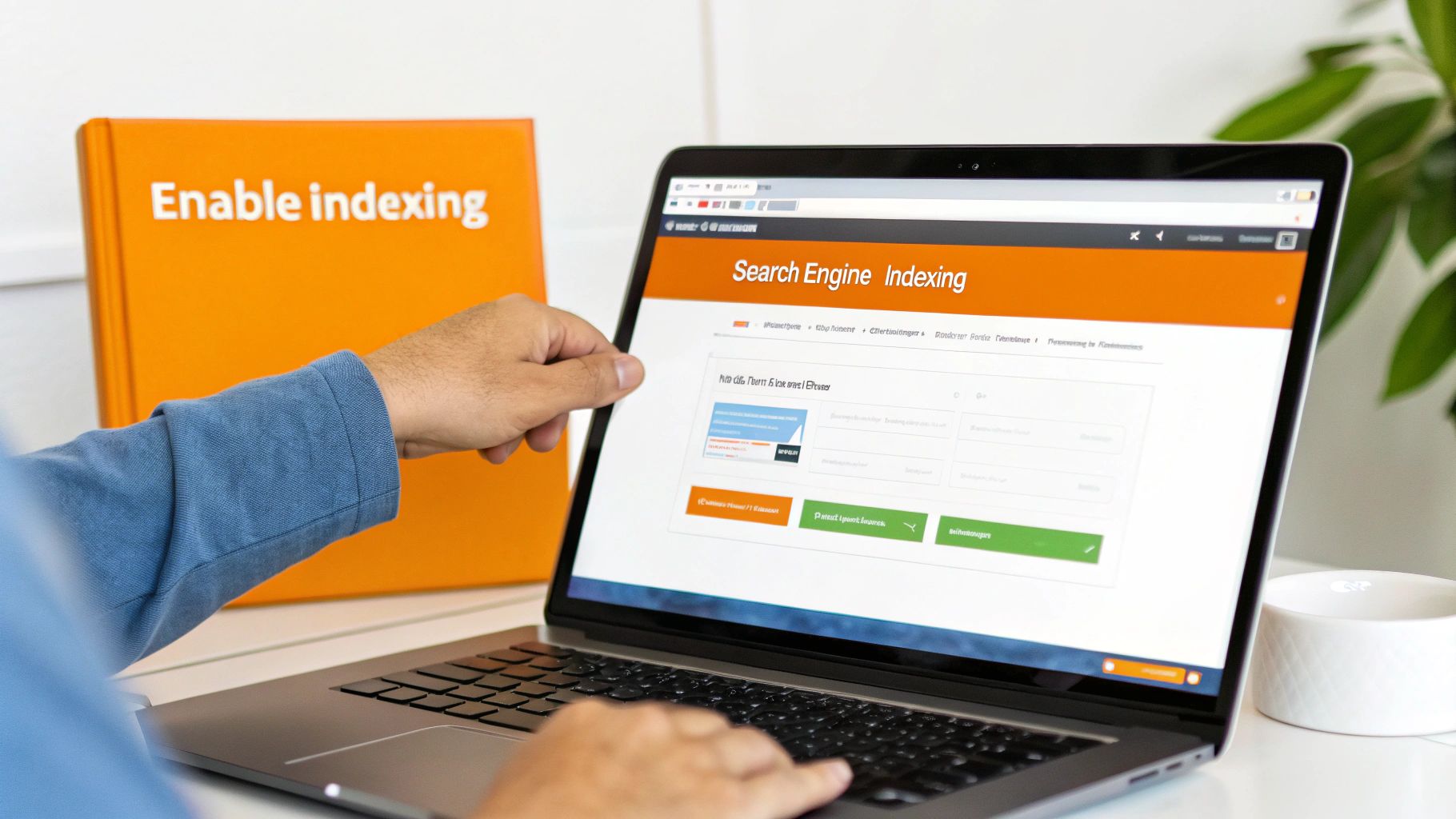
Just fixed a pesky tag? Published a brilliant new blog post? Made a significant update to a core service page? Your next move should always be to ask Google to index it. This simple step pushes your URL into a priority queue, which can shrink the indexing time from weeks down to a day or two.
Your go-to for this is the URL Inspection tool inside Google Search Console. It’s incredibly straightforward but powerful.
Grab the URL: Copy the full URL of the page you want Google to see and paste it into the search bar at the very top of your Search Console dashboard.
Check the Status: GSC will ping its index and report back. If you see the message "URL is not on Google," you've got confirmation—it's not indexed.
Request Indexing: Hit the "Request Indexing" button. Google will run a quick live test to make sure the page is accessible and then pop it into the crawl queue.
Make this a standard part of your publishing workflow for every important page, new or updated. Don't publish and pray; tell Google exactly where to look.
Monitoring Your Progress Effectively
Getting your site visible isn't a one-and-done deal. You need to keep an eye on things to make sure your fixes are actually working and Google is responding the way you expect.
The Pages report (what used to be called the Coverage report) in Search Console is your command center for this. It gives you a clear picture of how many of your pages are indexed versus not indexed and—most critically—why they aren't.
Pay close attention to the "Not indexed" tab. You'll see reasons like:
Crawled - currently not indexed: Google found the page but decided it wasn't worth adding to the index. This is a huge red flag for content quality.
Discovered - currently not indexed: Google knows the page exists but hasn't bothered to crawl it yet. This often points to crawl budget issues.
Page with redirect: Totally normal if you've moved pages, but if this number is high, you might have a redirect loop on your hands.
Tracking the number of indexed pages is your primary success metric. If that number starts to climb after you've submitted your sitemap and requested indexing for key URLs, you know your action plan is working. A stagnant or shrinking number means there are still underlying issues to solve.
Once you start becoming visible, you can supplement GSC's data. While it's essential, some of the best AI search tracker tools can give you more detailed data on keyword movements and what your competitors are up to.
When to Call in the Experts
Look, a lot of indexing issues are fixable with the steps we've covered. But there's a point where the DIY approach just doesn't cut it. If you've corrected all the obvious problems but your site is still not showing up on Google, it might be time to bring in a professional SEO agency.
Knowing when to ask for help is a skill in itself, especially if you're in a competitive industry. Advanced technical SEO is a specialized field, and sometimes you need a specialist.
Here are a few signs it's time to call for backup:
You've submitted your site for indexing multiple times with zero results.
Your Search Console reports are full of persistent crawl errors you can't decipher.
Your site got hit with a manual action (a penalty) from Google.
You operate in a cutthroat market where top rankings are make-or-break.
You simply don't have the hours in the day to manage ongoing SEO.
For businesses serious about competing, a dedicated partner makes all the difference. Los Angeles is at the center of our service area, and we proudly support clients across a wide network of surrounding cities and neighborhoods throughout Southern California. Our reach includes every corner of L.A.—from Downtown Los Angeles, Hollywood, West Hollywood, Beverly Hills, and Santa Monica to the beach communities of Malibu, Venice, Marina del Rey, Hermosa Beach, Manhattan Beach, and Redondo Beach. We also extend service through the San Fernando Valley, including Sherman Oaks, Studio City, Encino, Van Nuys, North Hollywood, Burbank, Glendale, Pasadena, Woodland Hills, Chatsworth, Canoga Park, Reseda, Northridge, and Tarzana. In the San Gabriel Valley, we work with clients in Alhambra, Monterey Park, San Gabriel, Temple City, Rosemead, Arcadia, El Monte, South El Monte, West Covina, Covina, Baldwin Park, Azusa, Glendora, Duarte, and Monrovia. Farther southeast, we serve Whittier, Pico Rivera, Downey, Norwalk, La Mirada, La Habra, and Cerritos. We also support the South Bay—including Torrance, Carson, Gardena, Hawthorne, Inglewood, and Long Beach—as well as the Gateway Cities and communities throughout the I-10, I-5, 101, and 405 corridors. Whether you’re in a major metro area or a smaller surrounding neighborhood, our team delivers reliable, high-quality service anywhere in or around Los Angeles. An agency with deep local knowledge can develop strategies that a generic, one-size-fits-all approach would completely miss.
Frequently Asked Questions About Google Visibility
Even after going through a full troubleshooting checklist, it’s completely normal to have some lingering questions. Understanding the timelines, potential penalties, and the little details of how search visibility works will help you set realistic expectations.
Let’s tackle some of the most common concerns I hear from clients.
How Long Does It Take for a New Website to Appear on Google?
This is the million-dollar question, and the honest answer is: it depends. For a brand-new website, you could be looking at anywhere from a few days to several weeks before Google even knows you exist, let alone starts showing your pages in search results.
Several things can speed this up or slow it down. A site with a clean XML sitemap submitted to Google Search Console and a couple of early backlinks will get on Google’s radar much faster. On the flip side, a site launched into the void with no sitemap and no links could sit there for a long, long time.
A huge misconception is that hitting "publish" automatically gets you on Google. The reality is your site is just one of billions, waiting in a massive line. My go-to move is to submit the sitemap and then use the URL Inspection tool to request indexing for the homepage and a few other key pages. It can give Google that initial nudge.
Could a Google Penalty Make My Website Disappear?
Absolutely. A penalty from Google can wipe your site off the map, either partially or completely. These penalties, which Google calls “manual actions,” are handed down when a human reviewer finds that your site violates their webmaster guidelines. This isn't just an algorithm change; it's a direct flag from Google.
What gets you in trouble? Usually, it's things like:
Unnatural links: Buying links or getting involved in shady link schemes to game the system.
Thin content with little to no value: Pages stuffed with keywords but offering nothing useful to a real person.
Hidden text or keyword stuffing: Old-school deceptive tactics that Google has been cracking down on for years.
The first place to look is your Google Search Console account. Navigate to the "Security & Manual Actions" tab and check the "Manual Actions" report. If you’ve been penalized, Google will spell it out for you—what the problem is and which pages are affected. From there, you can fix the issue and submit a reconsideration request.
Why Does My Site Only Show Up for Its Name?
This is a classic situation that highlights the difference between branded and non-branded search. When your site ranks for its own name (like "DLL Studios"), that's a branded search. People already know you. It's the easiest term to rank for because, well, it's you.
The real challenge is ranking for non-branded, commercial keywords (like "web design agency in Los Angeles"). If you're not showing up for those, it means your SEO strategy for those terms just isn't there yet. Getting visibility for competitive keywords requires a focused effort:
Targeted Content: You need pages and blog posts that are laser-focused on answering those specific search queries.
On-Page SEO: This means optimizing your page titles, headings, and body content with the keywords people are actually searching for.
Authority Building: This is the big one. You need to earn backlinks from other reputable sites to signal to Google that you're a trusted authority on the topic.
Think of it this way: Google knows who you are, but it doesn't yet see you as a leading answer for what you do. Closing that gap is what SEO is all about.
Navigating the world of SEO can feel overwhelming, especially when you're up against tough competition. If you've worked through these fixes and are still stuck, it might be time to bring in an expert. DLL Studios specializes in comprehensive SEO and web design that gets businesses seen. We can build a strategy to elevate your brand's presence online. Learn more and get in touch at https://www.dllstudios.com.
